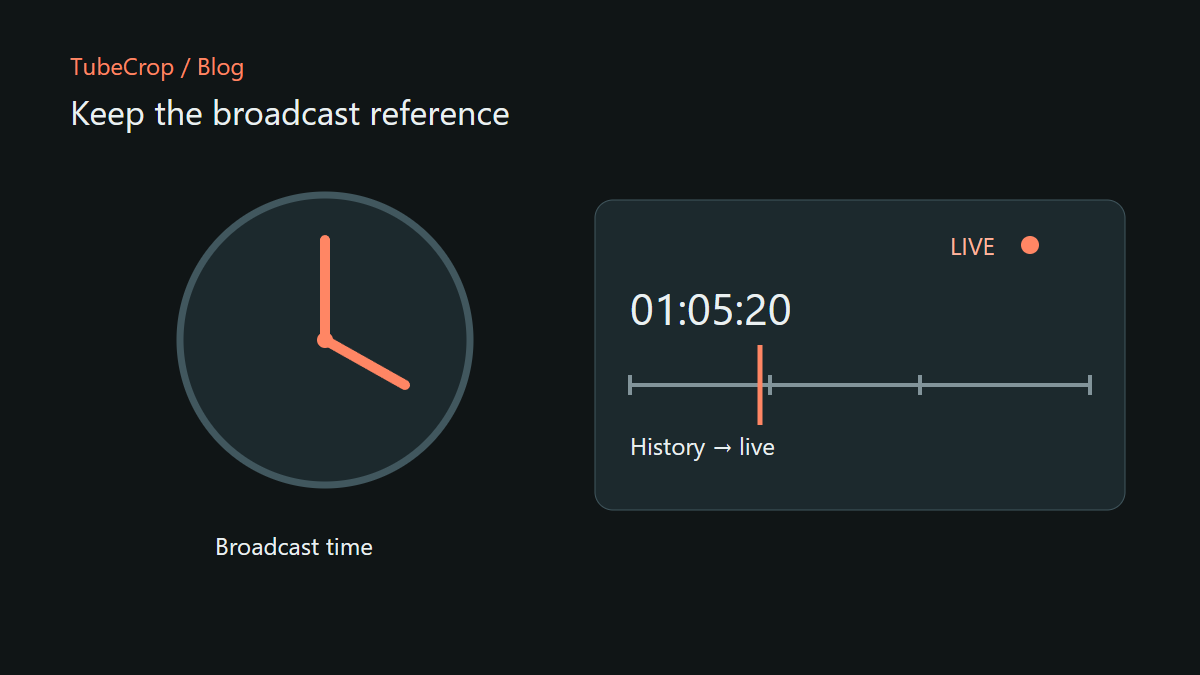
A live-stream moment has two useful times: when it happened in the broadcast and where it appears in your clip. Keeping those references separate makes it easier to find an event again, communicate a requested cut and understand what the exported file contains.
If an event happened about an hour into a stream, describing it as “a few seconds into my preview” is not enough for someone else to locate it.
Direct playback and history are separate sources
A live playlist usually exposes a moving portion of the transmission. Its current window is not necessarily the full public history available from Twitch. Conversely, the existence of a recent VOD does not prove that it belongs to the current broadcast.
TubeCrop's history workflow distinguishes the direct source from confirmed public history. Historical media must match the same transmission before it can stand in for an earlier moment. Using the most recent VOD without that check could produce a clip from the wrong event.
Availability varies by channel and broadcast. A working live player does not guarantee that public historical media can also be resolved. History that requires authentication is outside this public-history workflow.
Read the available range
When choosing an earlier moment, use the historical range reported for that source. An unavailable request should not silently become a clip of the latest seconds of the live stream.
For example, if you want a moment at 01:05:20 into a broadcast, keep that requested timestamp in your notes. After capture, compare the actual interval and the content with the request. Finding the expected scene is more meaningful than seeing a successful download message.
Do not assume that an open editing session preserves history indefinitely. A transmission can end, restart or lose access to historical media while you are working.
Return to the live point
After browsing history, the “Back to live” control returns playback to the current live source. The player's recommended live position can be slightly behind the latest available data to allow playback to proceed reliably.
That action changes what you are watching. It should not be confused with editing the source interval of an existing timeline segment. In a montage, the segment keeps its own relationship between source time and timeline position.
If the broadcast restarts, treat it as a new transmission. A timestamp from the previous session must not be interpreted as the same position in the replacement stream.
Capture first, then edit deliberately
Once the required moment is available, capture the intended interval and inspect it before building further edits. Listen for continuity and check that the beginning and end match the scene you wanted.
For a single moment, the basic editor may be enough. For several captured moments, Studio lets you construct a separate montage. Preserve the original broadcast references in your project notes so that a shortened montage does not erase the context.
Know the limits of the workflow
This is not continuous recording, a Twitch login service or a way to bypass access restrictions. It depends on the media that can be resolved for the particular broadcast. Some streams will support a useful historical range; others may remain live-only.
Check the current status shown by the player and use the wiki for the controls. If a required historical interval is unavailable, keep that limitation visible instead of treating an unrelated or newer moment as a successful capture.